Send Creative Look Recipes to Sony Wirelessly
Short answer: since AlphaLuma 1.1.3 (App Store, 2026-10-03; China edition 1.1.5, 2026-09-29), the iPhone app writes a whole Creative Look recipe into a Sony camera without a cable — connect over Bluetooth (it wakes the camera's Wi-Fi), a Wi-Fi Direct QR code or the same local network — as well as over USB. The camera needs Creative Look in its menu; the α7 V is verified on every path. AlphaLuma is a third-party app, not affiliated with Sony.
What you need
- An iPhone on iOS 15 or later (Camera Monitor and Recipe Lab need iOS 16).
- AlphaLuma 1.1.3 or later from the App Store (China edition 1.1.5 or later).
- A Sony body with Creative Look in its menu — see Supported cameras.
- For Bluetooth and Wi-Fi: nothing else — the camera makes its own hotspot.
- For the same-network path: a Wi-Fi router that both the camera and the iPhone can join.
- For USB: a cable that carries data; on iPhone 14 and earlier, Apple's Lightning to USB Camera Adapter.
You don't need Creators' App, Imaging Edge or a computer. In fact, quit Sony's apps before connecting: the camera accepts only one remote connection at a time.
Why go wireless
Writing a recipe into your camera used to mean finding a cable that carries data — plus an adapter on iPhone 14 and earlier. Fine at a desk, awkward everywhere else: the cable stays at home, or the camera is up on a tripod where the phone can't reach.
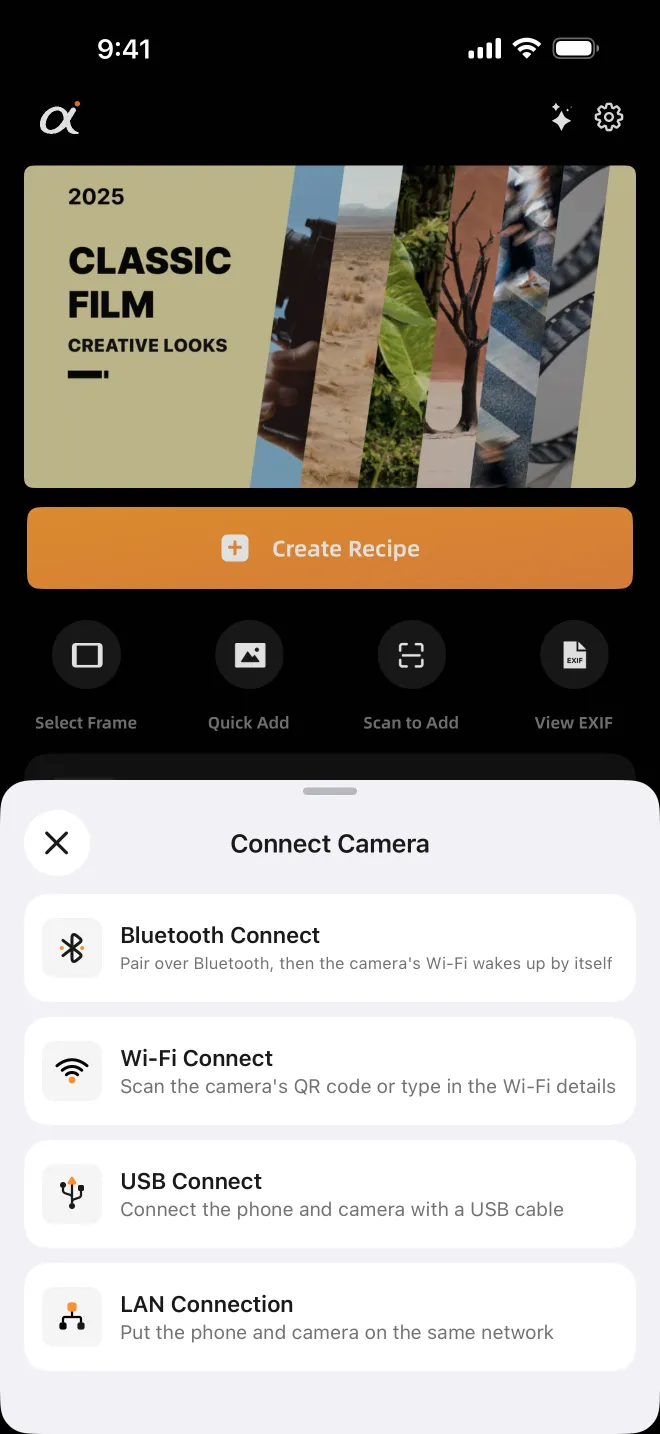
AlphaLuma now has four ways in: Bluetooth, Wi-Fi, your local network, and USB, all starting from the same Connect Camera card on the home screen. Whichever you pick, the result is the same — recipe import, Camera Monitor and Recipe Lab all work on every path.
Which one to pick
- Bluetooth — pair once; after that the app wakes the camera's hotspot and joins it for you. Best when you're out shooting.
- Wi-Fi — scan the QR code on the camera screen, or type the hotspot name and password. Good when Bluetooth pairing won't cooperate, or the camera is borrowed.
- Same network (LAN) — camera and iPhone on the same router; tap your camera in the list. Best at home or in the studio, because your phone stays online.
- USB — one data cable. For when you want the most stable link.
Three things worth knowing up front:
- Bluetooth only wakes the camera. It asks the camera to turn on its hotspot and hands the app the name and password; the actual data travels over Wi-Fi. So on the Bluetooth path your phone also joins the camera's Wi-Fi.
- On the camera's hotspot, iPhone shows "No Internet Connection". That's expected. When you disconnect, the phone goes back to your usual network.
- The LAN path doesn't switch networks, so it's the comfortable choice for a long recipe-tuning session.
First connection, step by step (Wi-Fi)
Every path comes with an on-screen guide that walks you through the camera side, screen by screen. Menu names differ a little between bodies — when in doubt, follow the guide in the app.
Step 1 — turn on remote shooting on the camera. In the app choose Wi-Fi Connect and tap View setup guide. On the α7 V the path is: MENU → Network → Connect/Remote Shooting → Remote Shooting Function → turn on Remote Shooting, then open Wi-Fi Direct Info. If your camera has a separate Wi-Fi menu, the guide has a switch for the other menu layout.
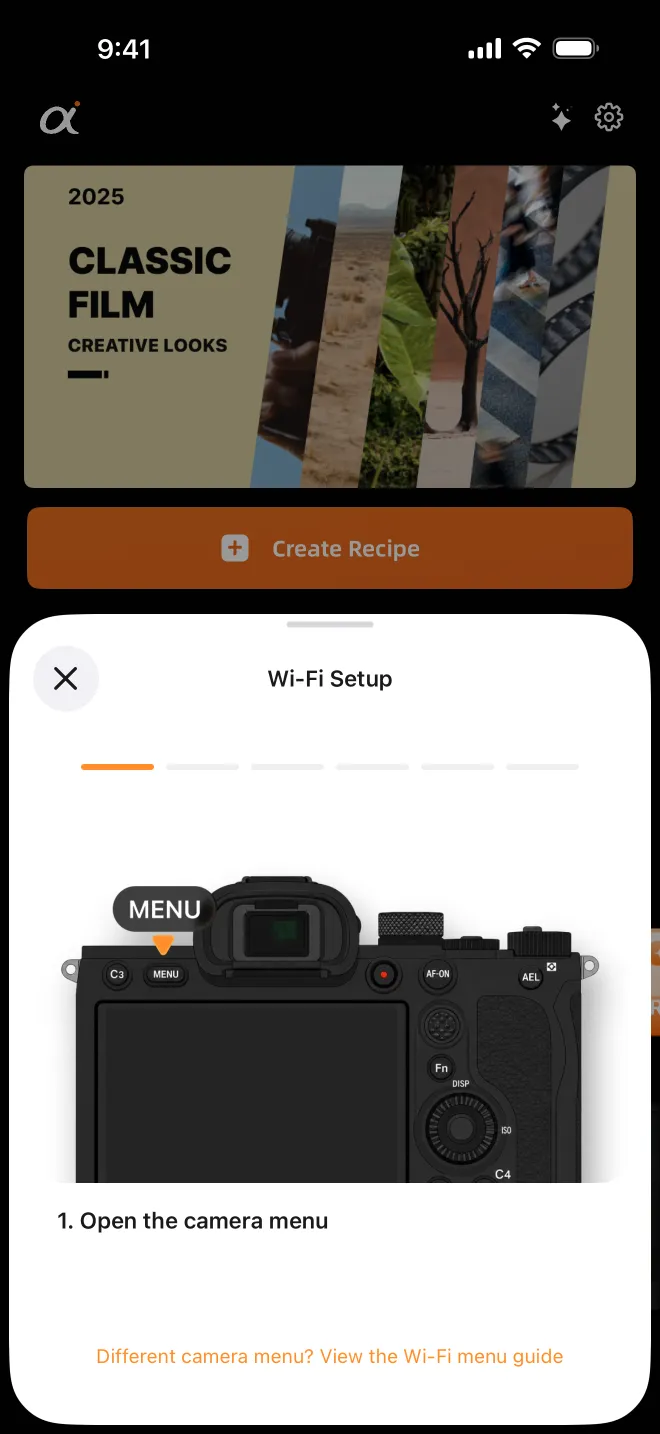
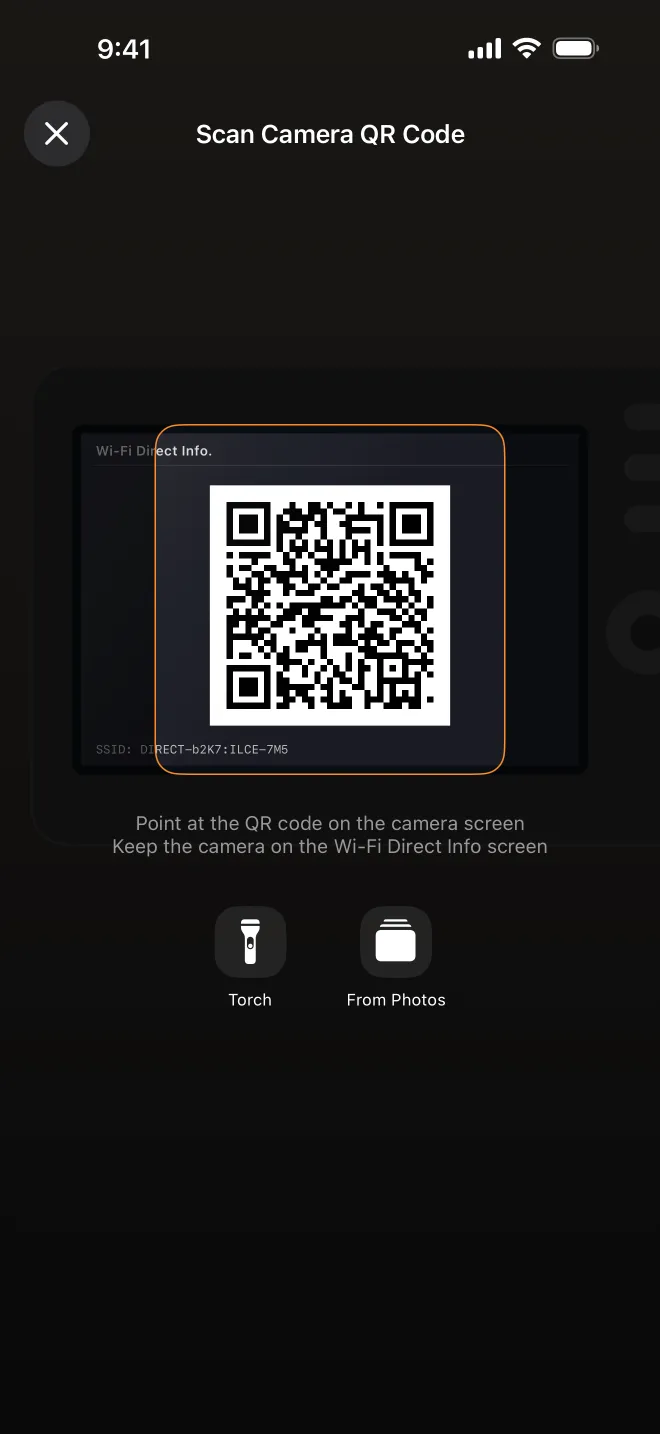
Step 2 — scan the QR code. The Wi-Fi Direct Info screen shows the hotspot name and password first; press the camera's delete (trash) button to bring up the QR code. Back in the app, tap Scan Camera QR Code and point it at the screen. No luck? Pick a photo of the code from your library, or tap Enter Wi-Fi details.
iPhone asks once whether to join the DIRECT-xxxx network — tap Join. The first time, iOS also asks for Local Network access. Allow it, or no wireless path will work.
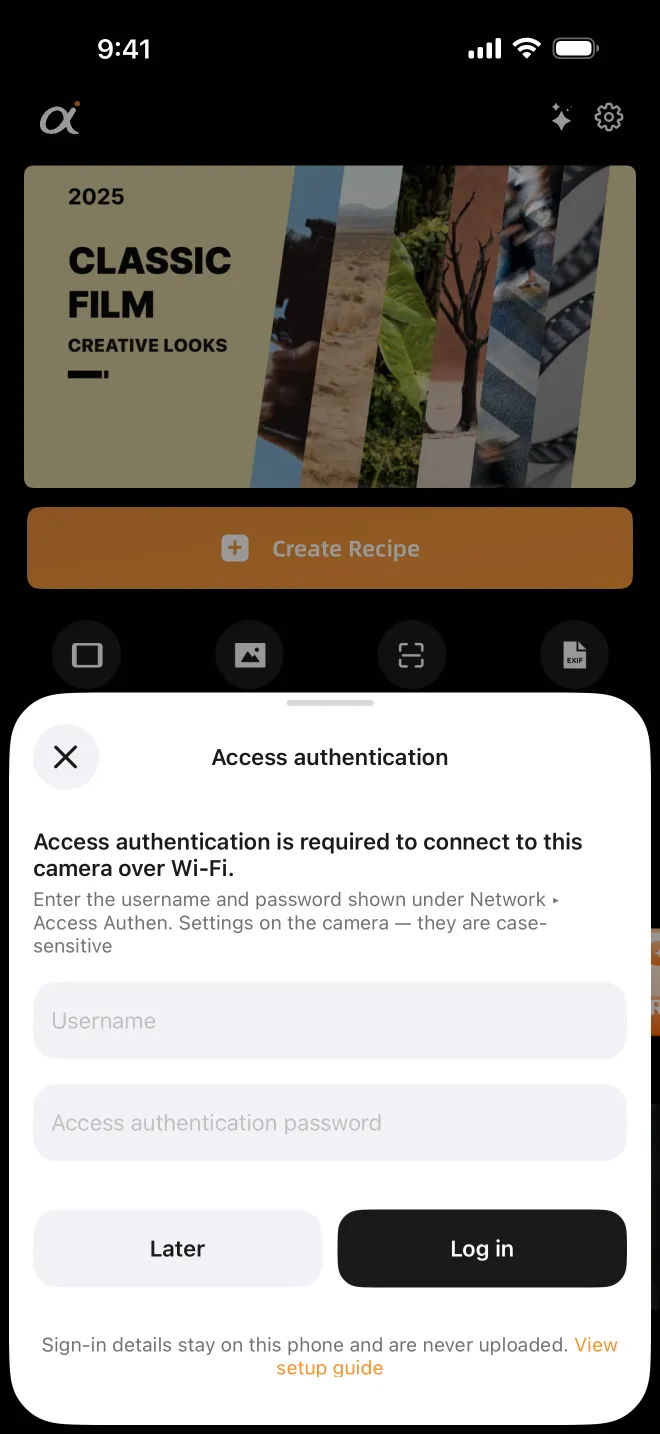
Step 3 — access authentication (first time only). Once on the camera's hotspot, the app asks for the camera's access-authentication user name and password. You'll find them under Network → Access Authen. Settings (under Network Option on some bodies). They are not "admin", and they are case-sensitive. They're stored only on your phone, never uploaded, and you won't be asked again for the same camera unless you change the password on the camera.
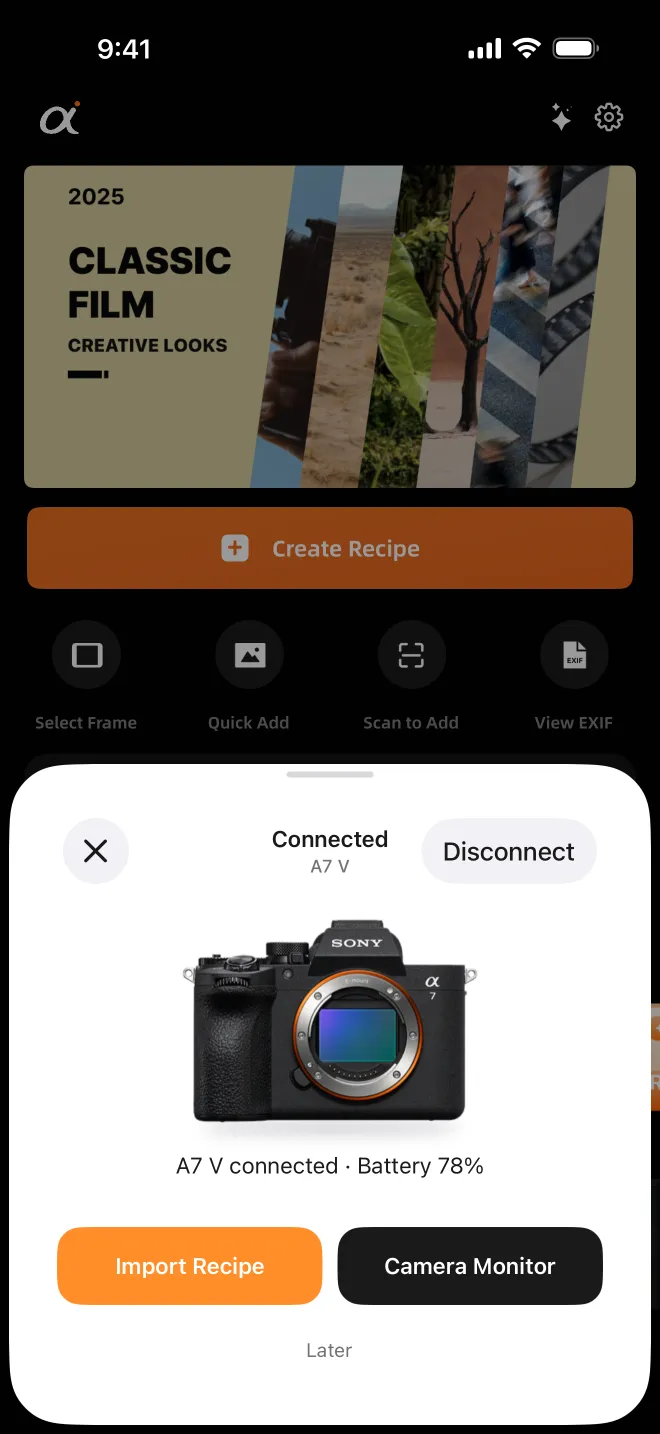
Step 4 — connected. You'll see the camera model and battery level, with shortcuts straight to recipe import and Camera Monitor.
The other three paths
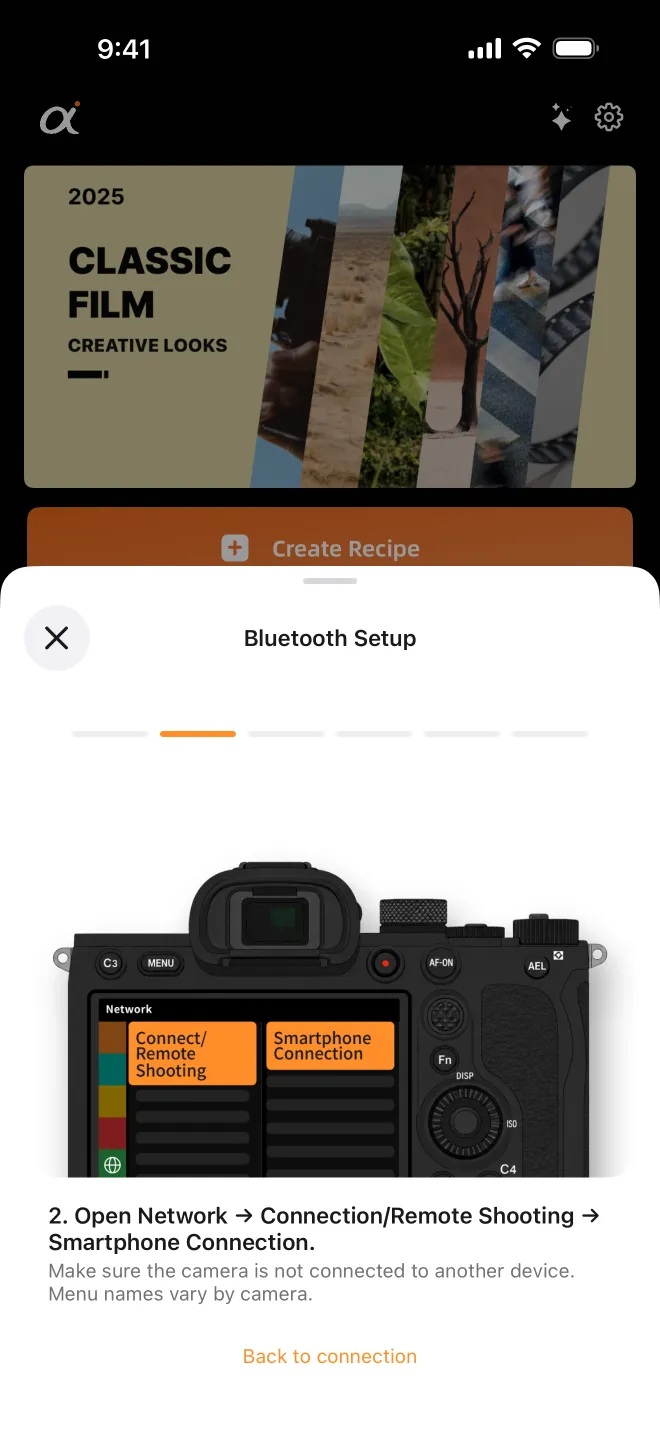
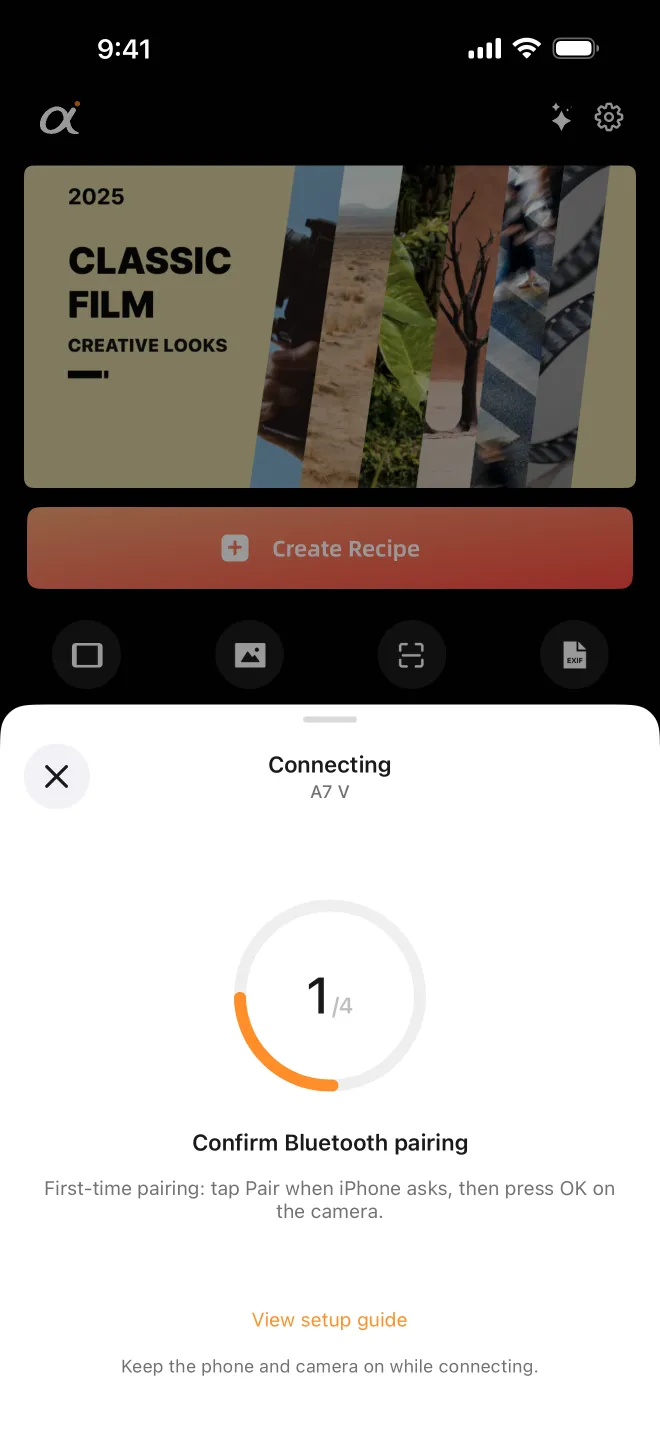
Bluetooth. On the camera open Network → Connection/Remote Shooting → Smartphone Connection (menu names vary by body), make sure Bluetooth is on and leave the camera on its waiting screen. In the app choose Bluetooth Connect; the first time, confirm pairing on the phone and press OK on the camera. From then on the app turns the hotspot on and joins it by itself. Don't pair with a USB cable plugged in — pairing fails while it's connected.
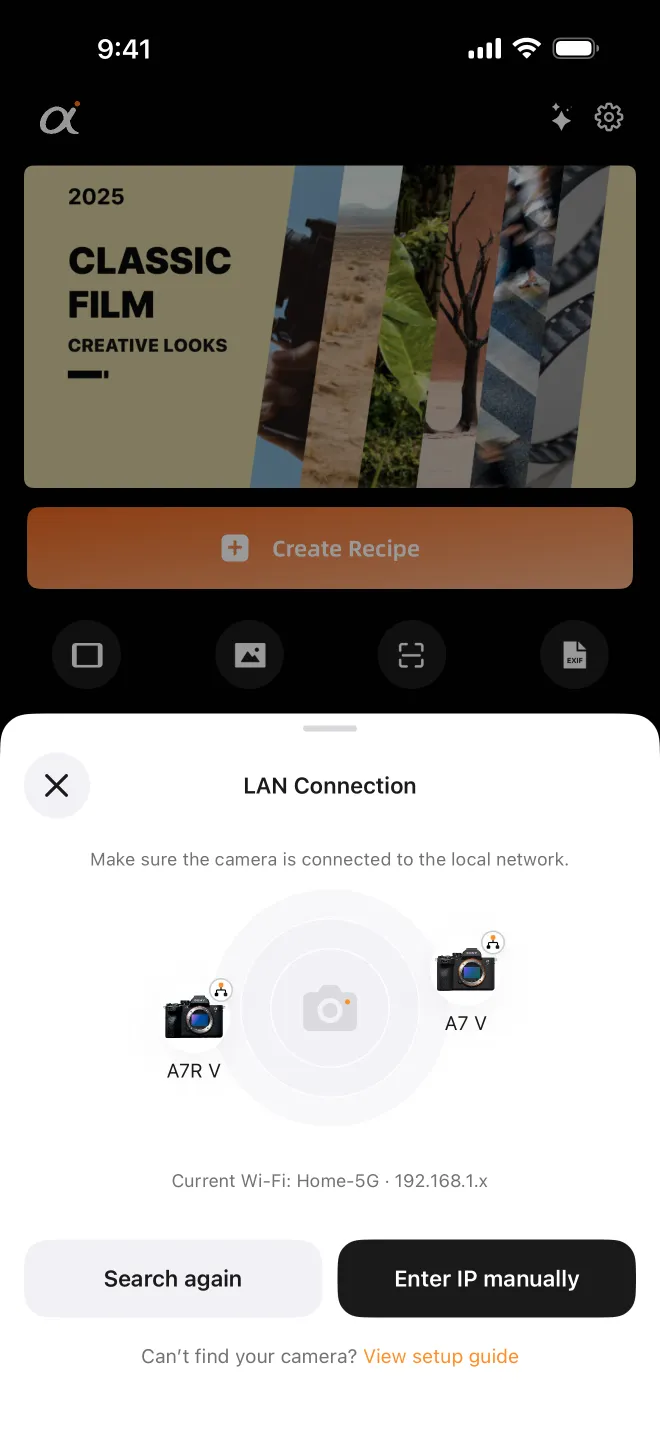
Same network. Join the camera to your home Wi-Fi (Network → Wi-Fi Settings → Access Point), turn on remote shooting (PC Remote on some bodies) and access authentication. In the app choose LAN Connection; it searches for cameras on your network — tap yours. If nothing shows up, enter the camera's IP address by hand; it's listed under Network → View Network Settings.
USB. iPhone 15 and later connect USB-C to USB-C; iPhone 14 and earlier need Apple's Lightning to USB Camera Adapter. The cable must carry data. Set the camera's USB Connection Mode to Remote Shooting (PC Remote on some bodies). The USB guide has the details.
What you can do once connected
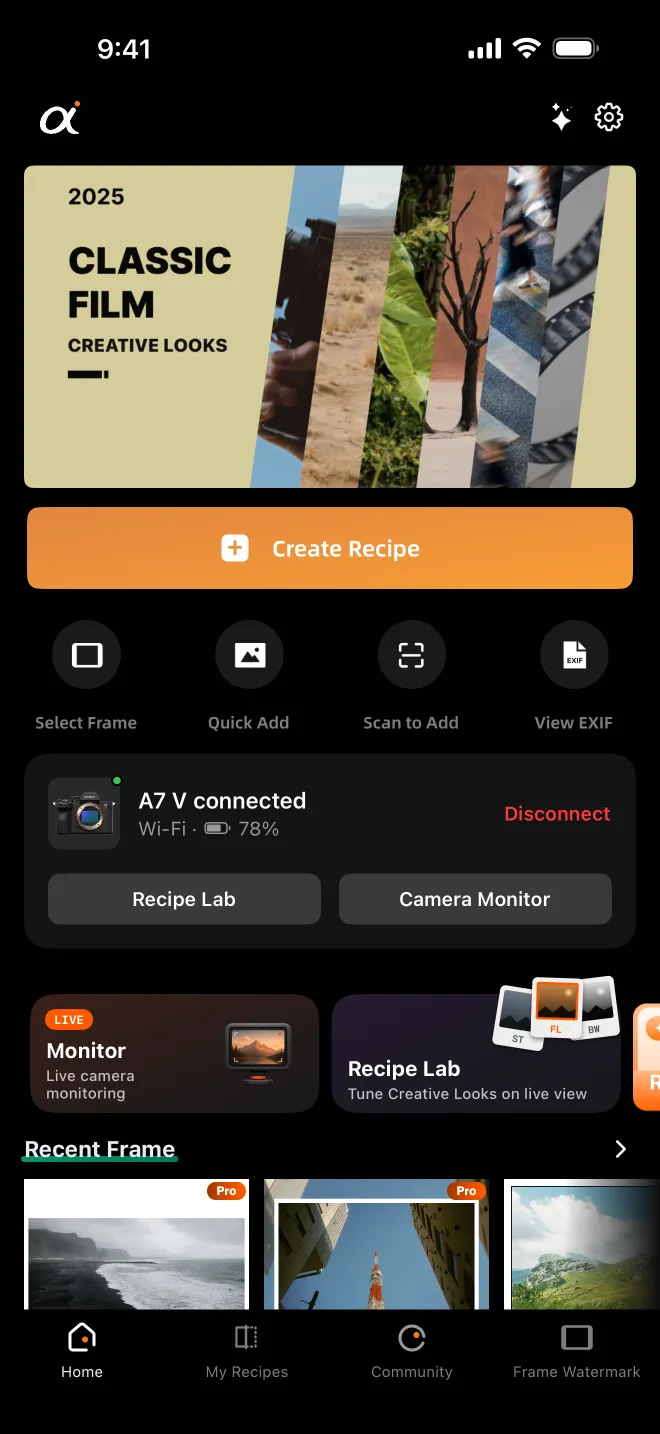
The home card shows the camera model, how it's connected and the battery level, with Recipe Lab and Camera Monitor one tap away and Disconnect in the corner.
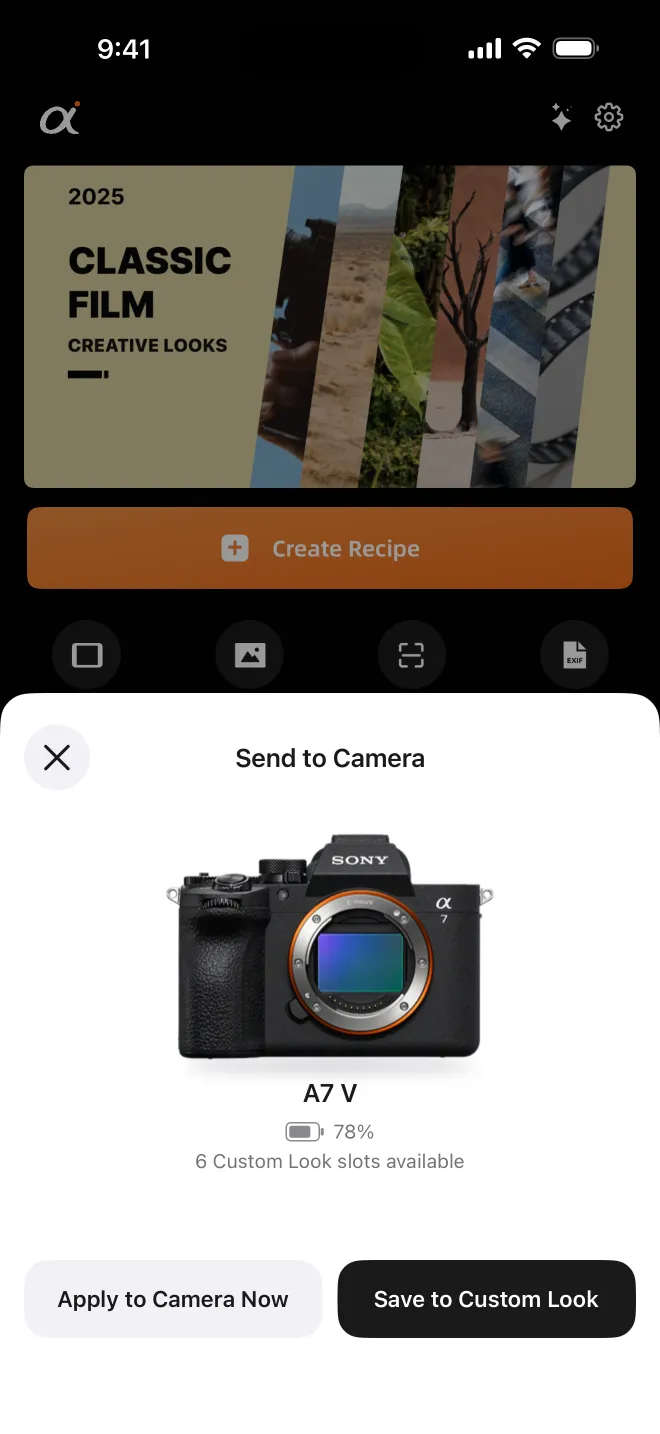
- Import recipes. The whole recipe — Creative Look, its eight adjustments and both white-balance shift axes — written in one go, either onto your current settings or into a Custom Look slot. Every change is listed first and nothing is written until you confirm. Wireless and USB share exactly the same write flow.
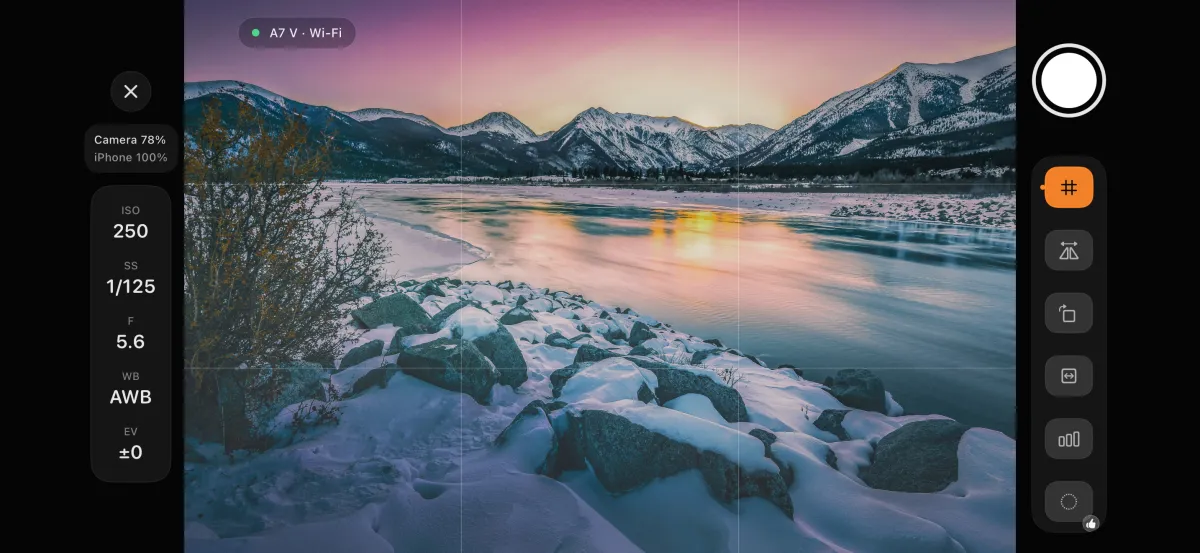
- Camera Monitor. The camera's live view on your phone with ISO, shutter, aperture, white balance and exposure compensation alongside, and grid and histogram overlays.
- Recipe Lab. Use the live view as your test strip: switch looks, turn the dials, and watch the result before you keep it. More in our AlphaLuma Recipe Lab guide.
When it won't connect
- Check these first. Turn off any VPN or proxy — they intercept traffic meant for the camera. Quit Creators' App and Imaging Edge; the camera accepts only one remote connection at a time. Keep a memory card in the camera. Make sure AlphaLuma has Bluetooth, Camera (for the QR scan) and Local Network permission.
- Bluetooth pairing hangs, or the camera drops right away. Usually the camera wasn't on its waiting screen, OK wasn't pressed on the camera, or the phone and camera remember different old pairings. In iPhone Settings → Bluetooth, tap ⓘ next to the camera and choose Forget This Device, then pair again. The app can only clear its own record, not iOS's. Still failing? Reset the camera's network settings — note that this also clears the Wi-Fi networks it remembers.
- "Joined the camera's Wi-Fi, but the camera isn't responding." Usually the phone hasn't got an address yet: wait a few seconds and tap Try Again. If it keeps happening, check VPN and Local Network permission, or turn the camera's Wi-Fi off and on.
- Access-authentication password rejected. Re-enter it from the camera's Access Authen. Settings screen, minding upper and lower case. A changed password on the camera is the usual cause.
- The camera doesn't show up on the same network. Check that the phone is on the same Wi-Fi as the camera (and not still on a camera hotspot), and that remote shooting and access authentication are on. Or type the IP address.
- It disconnects after a while. Keep AlphaLuma in the foreground while connected wirelessly — if it sits in the background too long, iOS suspends it and the connection is gone when you return. Camera sleep and auto power-off also end the connection; lengthen auto power-off for long monitoring sessions.
The full troubleshooting list lives in the wireless connection guide.
How this relates to Sony's own apps
Several apps can talk to a Sony camera over Wi-Fi, and they do different jobs. AlphaLuma is a third-party app, not affiliated with Sony.
- Creators' App (Sony, official) — the app the App Store surfaces for Sony cameras: account, image transfer, and since version 3.5 (announced 2026-08-27) Sony's own creator Looks delivered from Creators' Cloud. AlphaLuma writes community recipes and the ones you make yourself. Side by side: Creators' App vs AlphaLuma.
- Imaging Edge Mobile (Sony) — the older transfer app; the store now points to Creators' App.
- Imaging Edge Edit (Sony, on a computer) — re-applies a Creative Look to Sony RAW files after the shoot. AlphaLuma sets the look in the camera before you shoot. More: Imaging Edge and Creative Look.
- Monitor & Control (Sony) — official wired and wireless monitoring and remote control on a phone or tablet, built for video work. AlphaLuma's camera monitor is a lighter phone monitor that can also switch the Creative Look on the body.
All of these compete for the same remote connection on the camera, so run one at a time.
Which cameras
Wireless has the same requirement as USB: Creative Look in the camera menu. Bodies built on the older Creative Style — α7 III, α7C, α6400, ZV-E10, ZV-1 and the like — can't receive recipes on any path.
What we have tested on real hardware (last checked 2026-09-19):
- α7 V — Bluetooth, Wi-Fi QR, LAN and USB all verified.
- α7R V — LAN and USB verified; Bluetooth and the camera hotspot not yet verified.
- α7C II, α7CR, α7 IV, ZV-E1 — USB verified; wireless not yet tested.
- Other Creative Look bodies — worth a try on any path.
The α7R V splits PC Remote and Smartphone Connect into separate menus, and its smartphone hotspot doesn't accept remote control (likely the same on the α7C II and α7CR) — on these bodies, start with LAN or USB. Untested doesn't mean unsafe: the app checks the camera before writing anything and writes nothing to a body it doesn't support. If yours connects wirelessly and isn't marked yet, tell us — the full table is on Supported cameras.
Requires iOS 15 or later; Camera Monitor and Recipe Lab need iOS 16 or later.
Frequently asked questions
Can AlphaLuma send Creative Look recipes to a Sony camera without a cable?
Yes. Since AlphaLuma 1.1.3 (App Store, 2026-10-03) the whole recipe — Creative Look, its eight adjustments and both white-balance shift axes — can be written once you connect via Bluetooth, a Wi-Fi Direct QR code or the same local network, into the current settings or a Custom Look slot.
Does the recipe travel over Bluetooth?
No. Bluetooth only wakes the camera and asks it to open its Wi-Fi Direct hotspot; the recipe itself is written over Wi-Fi.
Why does my iPhone say "No Internet Connection" while connected to the camera?
On the Bluetooth and Wi-Fi paths the phone joins the camera's own hotspot, which has no internet. That is expected; the phone returns to your usual network when you disconnect. The same-network (LAN) path keeps your phone online.
Where do I find the Sony Access Authentication user name and password?
On the camera, under Network → Access Authen. Settings (under Network Option on some bodies). They are not "admin" and they are case-sensitive. AlphaLuma asks once per camera and keeps them only on your phone.
Does the α7R V work over Bluetooth or Wi-Fi?
The α7R V separates PC Remote from Smartphone Connect, and its smartphone hotspot doesn't accept remote control. LAN and USB are verified on the α7R V — start there. A direct-pairing fallback exists but hasn't been verified on a real body yet.
Do I need Creators' App or Imaging Edge to use AlphaLuma?
No. AlphaLuma connects to the camera on its own and needs no computer. Quit Sony's apps before connecting — the camera accepts one remote connection at a time.
Is this Sony's Creators' App?
No. Creators' App is Sony's official app and delivers Sony's own creator Looks. AlphaLuma is a third-party app that writes community recipes and your own into the camera. See Creators' App vs AlphaLuma.